Before Week 1 · 30–60 min
Pre-Course
Setup.
Welcome! Finish this before our Week 1 session, so we can spend our time building together instead of debugging environments.
If you get stuck, message the team chat with a screenshot — we'll unblock you quickly.
Section 01
What You'll
Install
Node.js
The engine that runs apps you'll build locally.
Git
Tracks changes to your project, like 'save versions' you can return to.
Cursor
Your code editor — where Claude Code lives.
Claude Code
The assistant you'll talk to every week — runs in a terminal.
Vercel CLI
Publish your apps to the web with one command — needed in Week 1.
Accounts
GitHub, Anthropic (Claude Pro), Vercel.
End state
You should be able to run claude in a terminal and see a friendly prompt. Don't worry — we'll explain what a terminal is below.
Section 02
What Is a
Terminal?
A terminal is a text window where you type commands instead of clicking buttons. It looks intimidating but you'll only need a handful of commands, and we'll guide you through every one.
Open it now (you'll use it a few times below):
- Press
Cmd + Spaceto open Spotlight - Type Terminal
- Press Enter
You'll see a window with a blinking cursor. That's it — you're in a terminal.
Keep this window open — we'll come back to it.
Section 03
Accounts
First.
Create these three accounts before installing anything else.
GitHub ↗
Free tier is fine.
github.com/signupVercel ↗
Sign up with GitHub. Free.
vercel.com/signupAnthropic Claude Pro ↗
~$20/month. Required for Claude Code.
claude.ai/upgradeImportant — Anthropic billing
In your Anthropic billing settings, enable additional usage / pay-as-you-go. Pro includes a usage allowance that can run out mid-session; enabling extra charge prevents you from getting blocked partway through a workshop. We'll only use a few extra dollars at most.
Section 04
Install
Steps
Pick your platform. Each step takes a couple of minutes.
Install Node.js
- Go to nodejs.org and click the big "Get Node.js®" button.
- On the next page, leave everything as-is — the defaults already say LTS version and macOS.
- Scroll down to "Or get a prebuilt Node.js®" and click the green macOS Installer (.pkg) button.
- Open the downloaded
.pkgfile and click Continue → Continue → Agree → Install. Enter your Mac password if asked, wait for "Install Successful," then click Close.
Ignore the black code block
That page also shows a black code block with nvm and curl commands. Skip it — it's for advanced users. The green macOS Installer (.pkg) button is what you want.
Verify it worked. Open Terminal (Cmd + Space → type "Terminal" → Enter) and run:
node -v
npm -vYou should see two version numbers (e.g. v24.15.0 and 11.12.1). If you see "command not found," close and reopen Terminal, then try again.
Now fix npm's global install folder so future npm install -g commands work without permission errors:
mkdir -p ~/.npm-global
npm config set prefix '~/.npm-global'
echo 'export PATH="$HOME/.npm-global/bin:$PATH"' >> ~/.zshrc && source ~/.zshrcThis tells npm to install global packages in your home folder instead of a system folder that requires admin access. Do this once and you're set.
Install Git
Most Macs already have Git. Check:
git --versionIf missing, install via git-scm.com or run xcode-select --install.
Configure your name and email (use your real ones — these go on every save):
git config --global user.name "Your Name"
git config --global user.email "your@email.com"Install Cursor with Claude Code Extension
Download from cursor.com. Open it once to make sure it launches.
Then follow the visual guide below to install the Claude Code extension and sign in:
Exit the Agent view
Cursor opens in Agent mode by default. We won't use it in this course — click “Editor Window” in the top-right to switch to the editor.
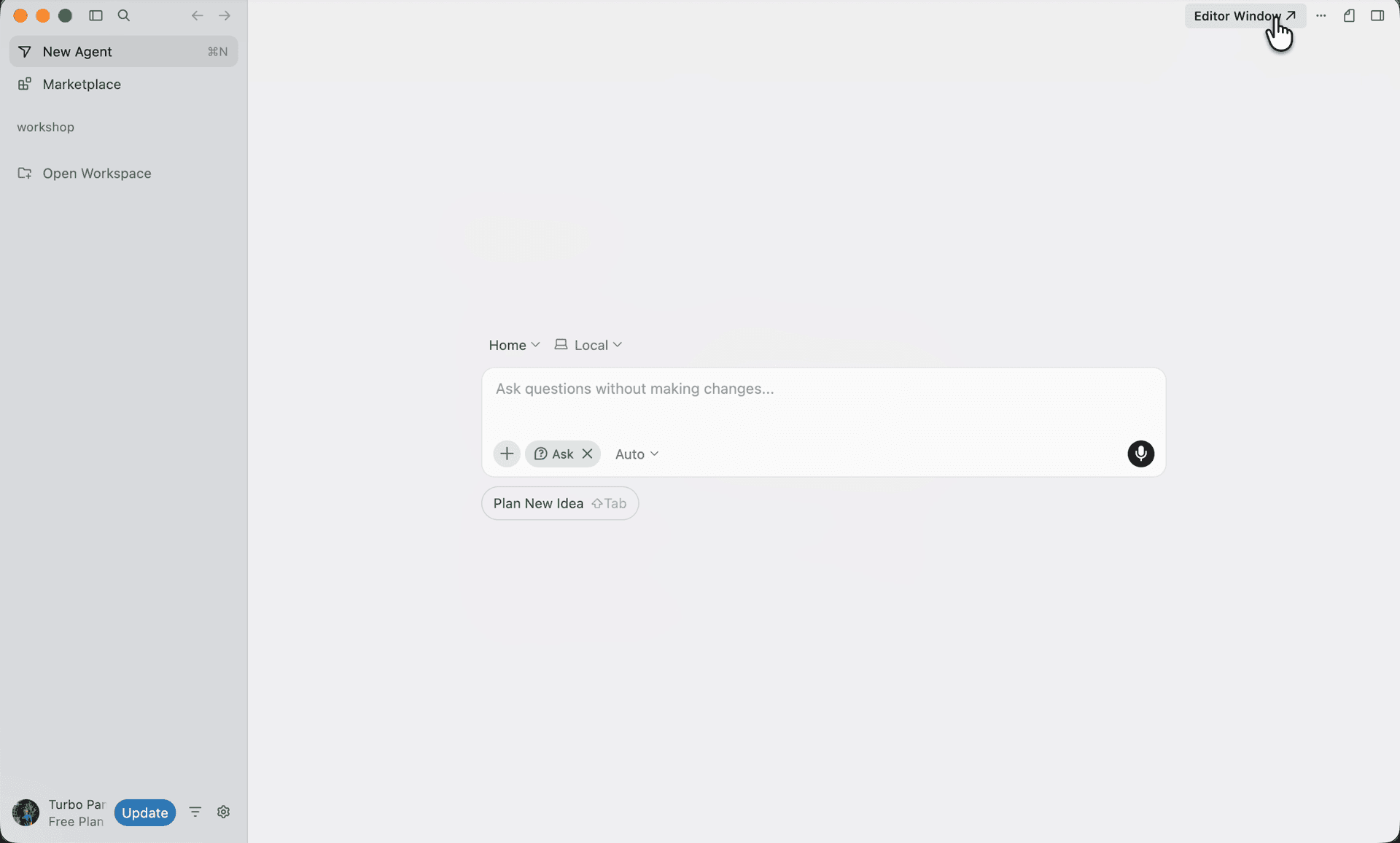
Step 1 of 8
Install Vercel CLI
npm install -g vercel
vercel --versionYou should see a version number.
Now log in so you're ready for Week 1:
vercel loginUse the arrow keys to select "Continue with GitHub" and press Enter. Your browser will open — click Authorize Vercel. When the terminal says "Success!", you're logged in.
Start your first workshop
You're set up. Time to clone the workshop repo and open Claude Code inside Cursor. The trickiest bit is finding Claude Code: Open — it's tucked behind the … menu on the right-side agent panel.
Copy this URL — you'll paste it in step 2:
https://github.com/turboza/workshop-build-with-claude-codeClone the repo
On the Cursor welcome screen, click “Clone repo.” This kicks off the workshop checkout.
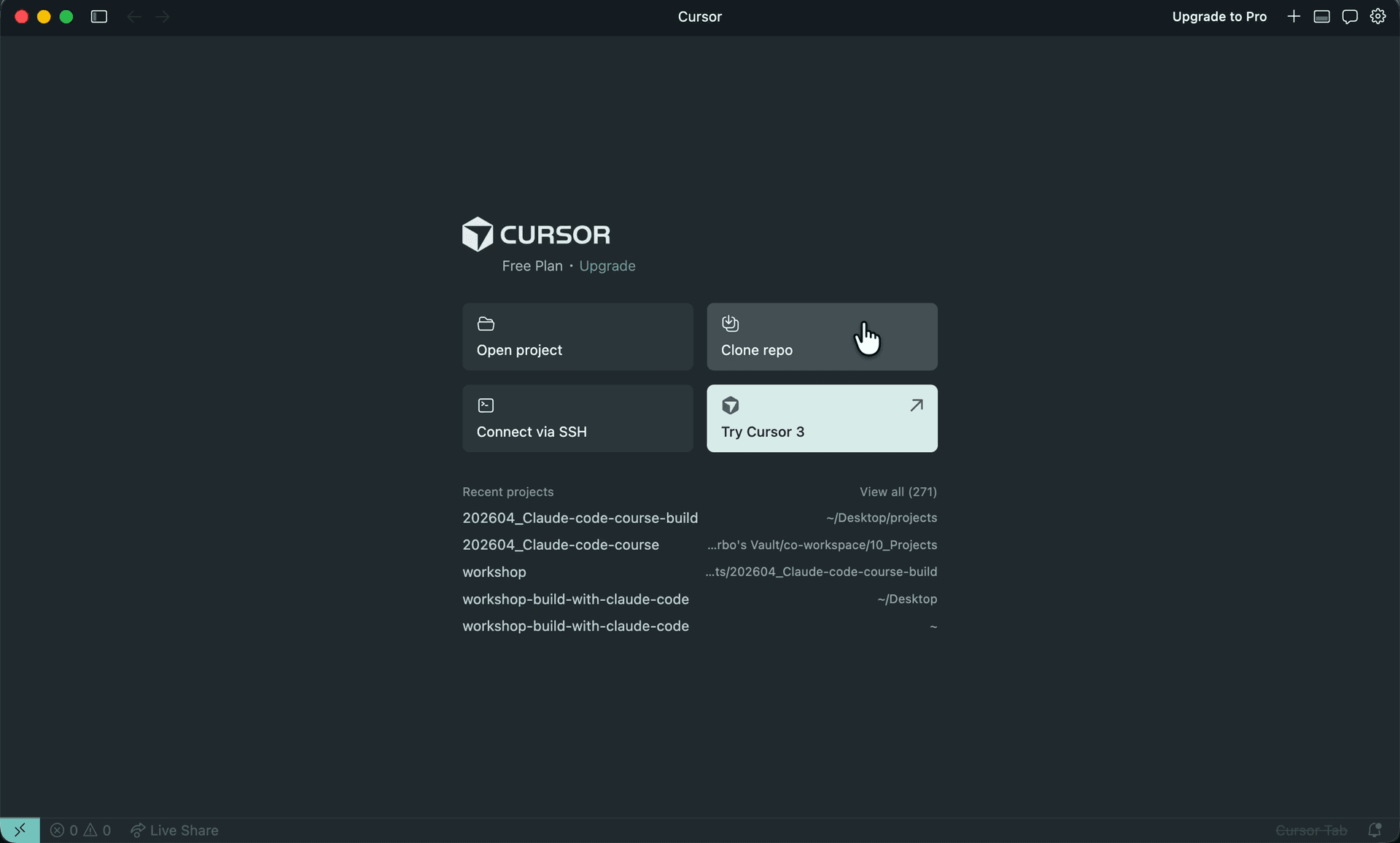
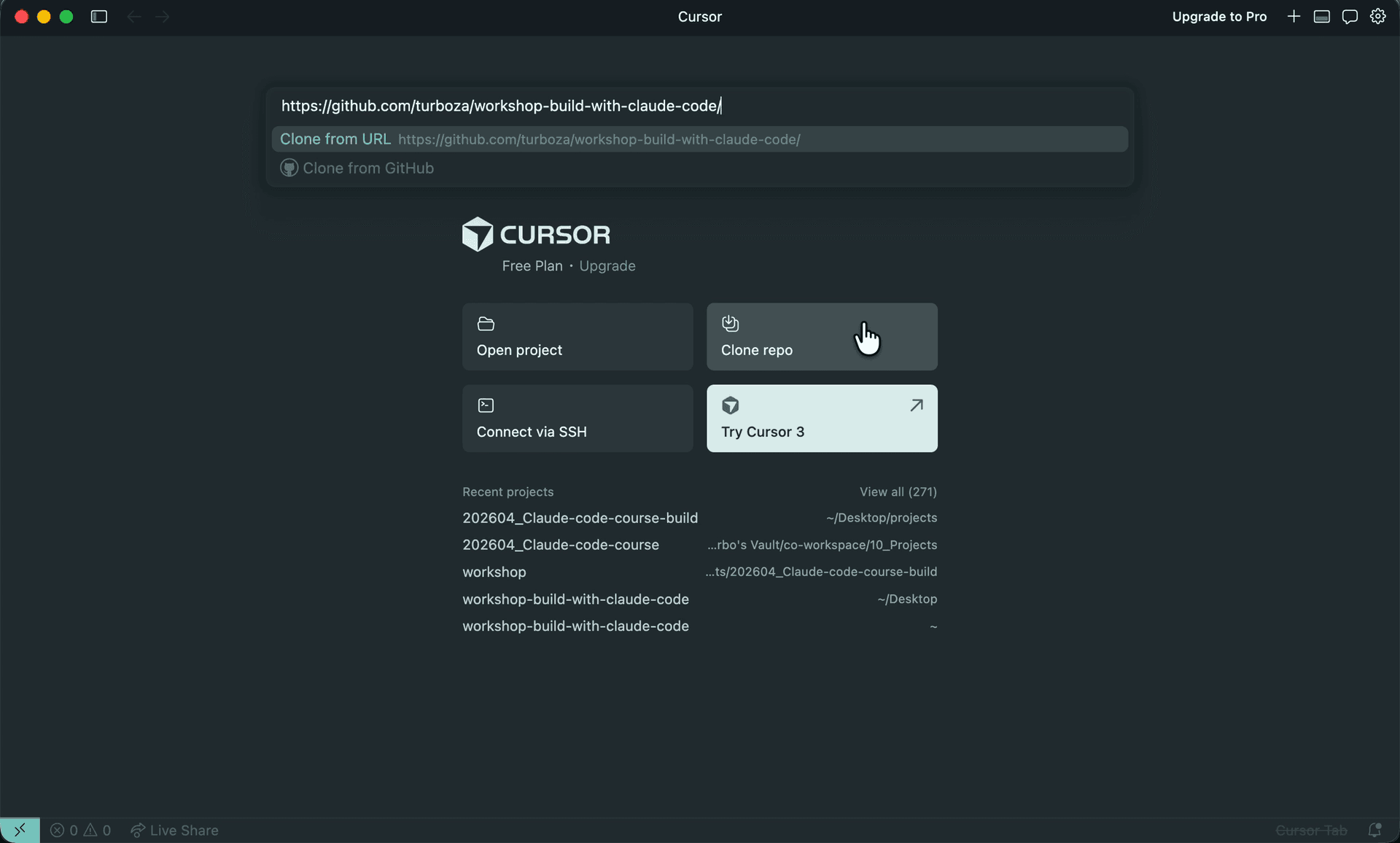
Step 1 of 8
Section 05
Common
Errors
| Error | Fix |
|---|---|
| node: command not found / not recognized | Restart terminal. If still broken, reinstall Node with 'Add to PATH' checked. |
| npm.ps1 cannot be loaded because running scripts is disabled (Windows) | Run: Set-ExecutionPolicy -Scope CurrentUser RemoteSigned (regular PowerShell, not admin). Confirm with Y. See Windows Step 2. |
| git: command not found | Reinstall Git for Windows; check 'Git from command line' option. |
| claude: command not found after install | Close + reopen terminal — the installer adds claude to PATH on launch. If still missing, re-run the install command. |
| 'irm' is not recognized (Windows) | You're in Command Prompt, not PowerShell. Open PowerShell from the Start menu — your prompt should start with PS C:\. |
| Cursor terminal opens Command Prompt on Windows | Settings → 'terminal default profile' → PowerShell |
| Port 3000 already in use | Kill other Node processes or run dev on different port |
Section 06
Pre-Week-1
Sanity Check
By the time Week 1 starts, you should be able to run all of these without errors:
node -v          # should print a version
npm -v           # should print a version
git --version    # should print a version
vercel --version # should print a versionConfirm Vercel sees you as logged in:
vercel whoamiShould print your Vercel username. If you see "Not authenticated," run vercel login again.
✓ If all commands work and vercel whoami prints your username — you're ready for Week 1.
Section 07 · Optional
CLI Claude
Code
You already signed in to Claude Code through the Cursor extension in Step 3 — that's all you need for the course. Install the standalone claude CLI only if you want to run Claude Code from a terminal outside Cursor.
In Terminal:
curl -fsSL https://claude.ai/install.sh | bashAnthropic's official installer. Places claude on your PATH and auto-updates in the background — no npm needed.
Close and reopen Terminal, then verify:
claude --versionComing in later weeks
No action needed now
Supabase (Week 3+) — a database for your app. We'll sign up and connect it together in class.
More tools may be introduced as we go; we'll send a short add-on guide before any week that needs new setup.
If you're stuck
Message the team chat
- Which step you're on
- A screenshot of the error
- Your OS (Mac / Windows)
We'll respond within a few hours during the week before the session.